This is the complete, DAW-neutral StringLock Quick Meter manual. REAPER's optional embedded tuner is documented in its own section.
1. Welcome to StringLock
StringLock Quick Meter™ is the free edition of StringLock Pro™, Creative Solutions Digital's comprehensive instrument tuning, calibration and setup workstation.
Designed for professional luthiers, guitar technicians, instrument builders and demanding musicians, StringLock Pro combines precision tuning with advanced intonation analysis, custom tuning configurations, instrument profiles, pitch stability monitoring and professional instrument setup tools.
StringLock Quick Meter brings the core precision tuning technology of StringLock Pro to everyone, completely free.
Inspired by the illuminated displays and tactile controls of classic 1980s and 1990s audio equipment, Quick Meter delivers professional-grade tuning capabilities through an intuitive, vintage-inspired interface.
No subscriptions. No time limits. No compromises on tuning accuracy.
At a glance
- Chromatic tuner plus 25 guitar and bass tuning presets.
- Large note, octave, frequency and cents readouts.
- Needle meter and animated strobe modes with directional feedback.
- Automatic string selection and manual target locking.
- Adjustable A4 reference, input gate, response and in-tune tolerance.
- Output mute while pitch analysis continues.
- VFD brightness and editor scale controls.
- VST3 on macOS and Windows, Audio Unit on macOS, plus standalone editions.
- Optional native REAPER embedded track and mixer tuner.
2. Installation and Compatibility
StringLock Quick Meter works as an audio plugin in compatible digital audio workstations (DAWs), or as a standalone application without a DAW.
Supported formats
| Platform | Available formats |
|---|---|
| macOS | VST3, Audio Unit (AU), standalone; Intel and Apple Silicon |
| Windows 64-bit | VST3, standalone |
Compatible plugin-host examples include REAPER, Cubase, Nuendo, Ableton Live, Studio One, Logic Pro, GarageBand, FL Studio and Bitwig Studio. Logic Pro and GarageBand require the macOS AU version. Compatibility with individual host versions is subject to testing; support cannot be guaranteed solely from the host name. Pro Tools is not currently supported, because StringLock does not ship as AAX.
Installing on macOS
- Close your DAW and extract the downloaded StringLock archive.
- Copy
StringLock Quick Meter.vst3to~/Library/Audio/Plug-Ins/VST3/. - For Audio Unit hosts, copy
StringLock Quick Meter.componentto~/Library/Audio/Plug-Ins/Components/. - Optionally move the standalone
.appto Applications. - Restart your DAW and rescan its plugins if StringLock is not listed.
When a signed installer is supplied, follow its on-screen instructions instead of copying files manually. Development ZIPs are not notarized, and macOS may restrict their use. Follow the security instructions accompanying your trusted download; do not disable system-wide protections.
Installing on Windows
- Close your DAW and extract the downloaded StringLock archive.
- Copy the entire
StringLock Quick Meter.vst3directory toC:\Program Files\Common Files\VST3\. - Optionally place the standalone
.exein your preferred application folder. - Restart your DAW and perform a plugin rescan if necessary.
Administrator permission may be needed for Program Files. Development builds may be unsigned; install only packages obtained through a trusted distribution source.
Release note: Installation steps above cover the current ZIP layout. Signed installers and their exact operating-system requirements should be verified against the final release package.
3. Getting Started
StringLock analyzes the incoming audio signal and displays its fundamental musical pitch in real time. For electric guitar and bass, connect through an audio interface with a high-impedance INST / Hi-Z input.
In any compatible DAW
- Connect the instrument to your audio interface.
- Select the correct audio device and input channel in your DAW.
- Create or select an audio track, then insert StringLock Quick Meter as an audio effect.
- Arm or input-monitor the track if your DAW requires it for live processing.
- Pluck one string at a time. Observe the detected note, frequency and deviation.
- Adjust string tension gradually until the display indicates IN TUNE.
Recommended signal path
Place StringLock near the start of the effects chain, before distortion, modulation, delay and reverb. A clean, direct signal normally produces steadier pitch readings. Mute unused strings to minimize sympathetic vibrations.
Using the standalone application
Open StringLock's standalone application, choose your input device and audio channel in its audio-device settings, and play your instrument. The same tuning controls are available without launching a DAW.
4. Understanding the Main Display
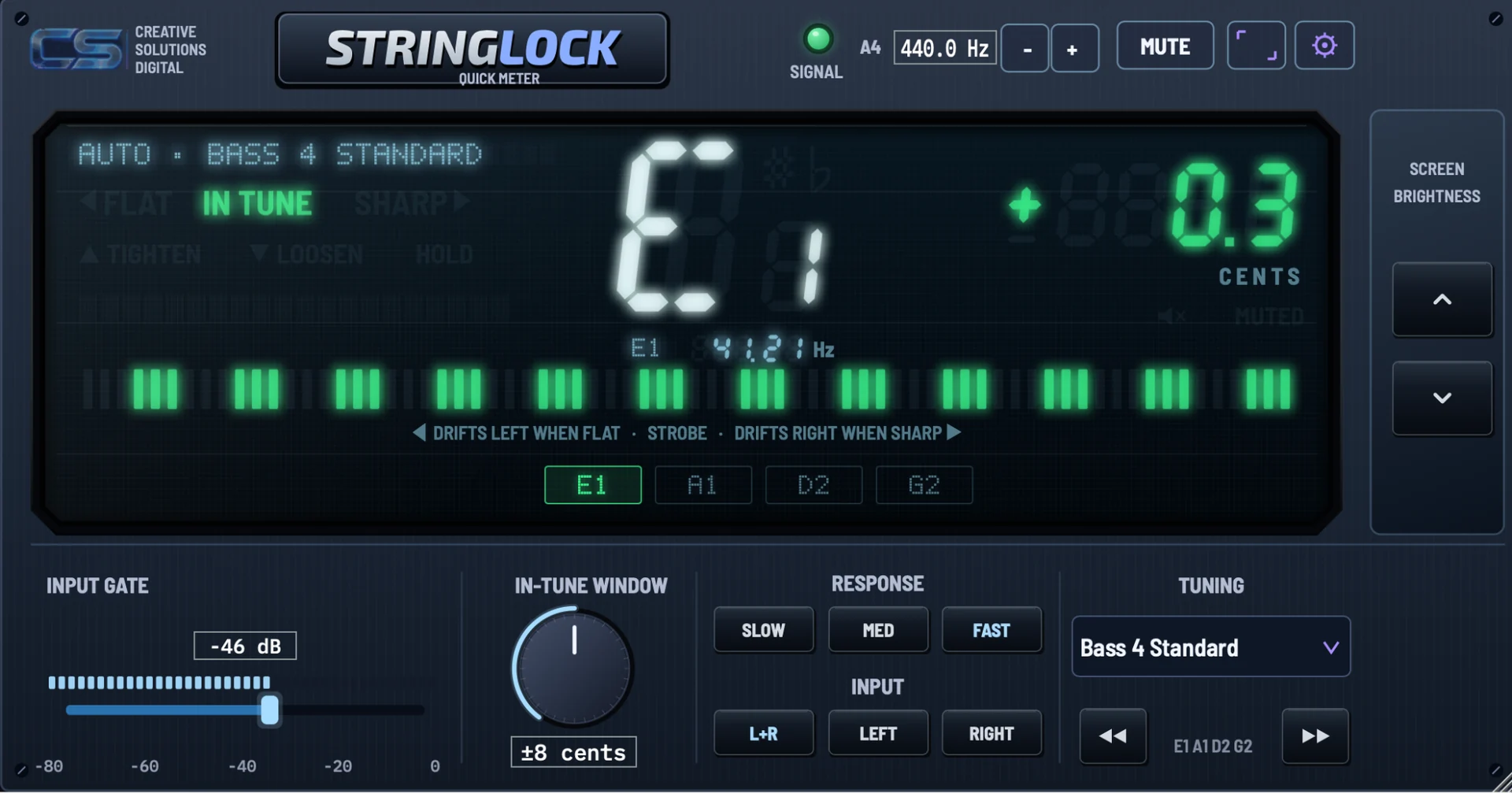
The VFD-inspired display provides the detected note, octave, frequency, cents deviation, tuning verdict, visual meter and (when a preset is selected) string targets.
Note and octave
The large central readout uses scientific pitch notation, where middle C is C4. E1 is the low E of a standard four-string bass, while E2 is the low E of a standard six-string guitar.
Frequency in hertz
The smaller frequency readout displays measured pitch in Hz. With A4 = 440 Hz, standard bass low E1 is approximately 41.20 Hz.
Cents: pitch deviation
One semitone equals 100 cents. 0.0 indicates the target pitch, a negative figure indicates a flat note, and a positive figure indicates a sharp note. For example, −8.5 is 8.5 cents flat; +4.2 is 4.2 cents sharp.
Status colours and guidance
- Blue / FLAT: The pitch is below target; TIGHTEN the string gradually.
- Green / IN TUNE: The pitch is within the configured In-Tune Window.
- Orange / SHARP: The pitch is above target; LOOSEN the string gradually.
The colour-coded verdict depends on the configured tolerance, not only the number of cents displayed.
5. Needle Meter Mode
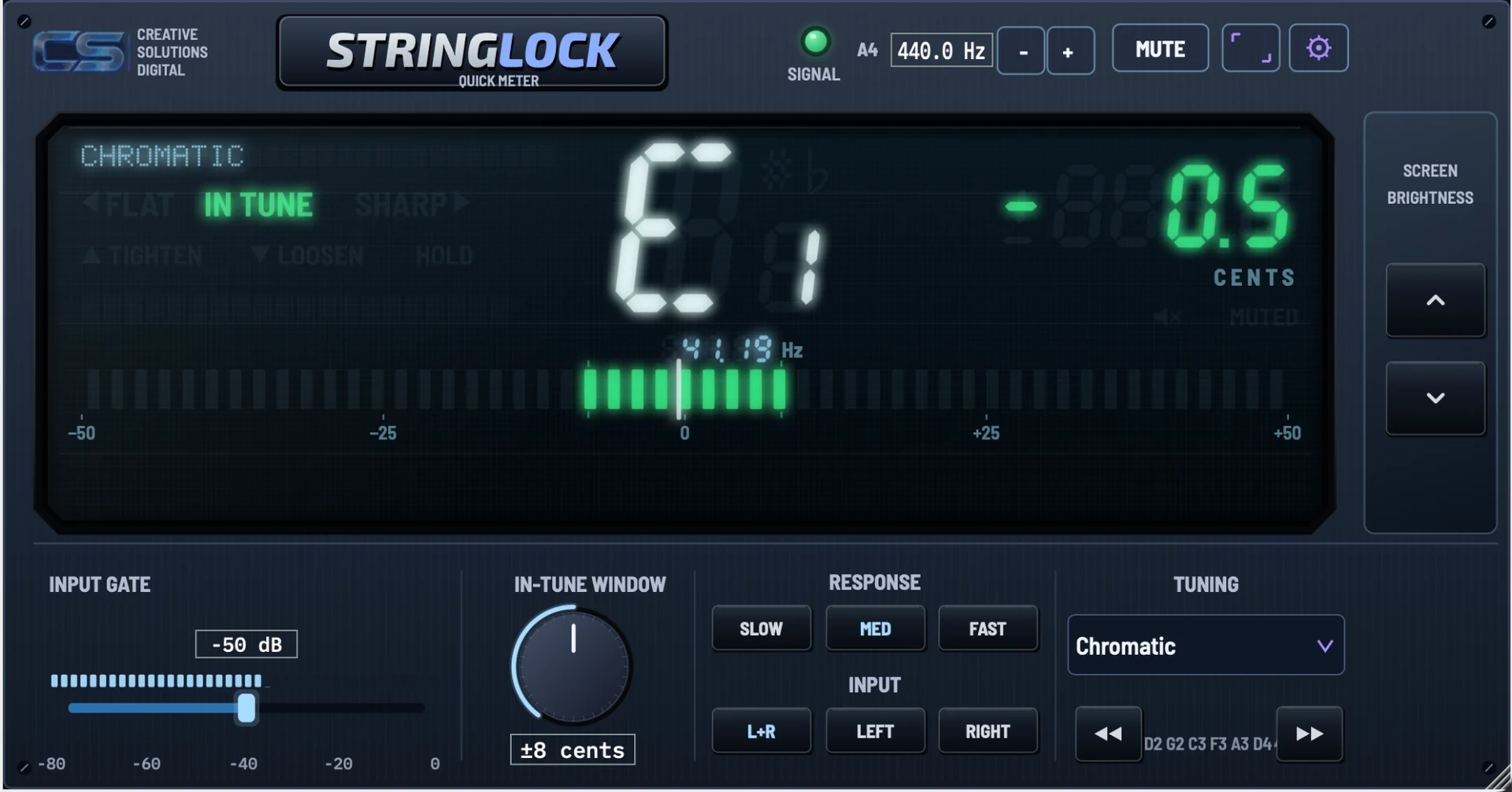
Needle mode displays a horizontal −50 to +50 cents tuning scale centred on zero. The illuminated marker moves toward the middle as the note approaches target pitch.
How to tune
- Select Chromatic mode or an appropriate tuning preset.
- Pluck the string and wait for the initial attack to settle.
- For a blue or negative reading, raise the pitch gradually; for an orange or positive reading, lower it.
- Fine-adjust until the centre is reached and IN TUNE appears.
Needle mode is recommended for everyday tuning, quick adjustments between songs, practice, initial setup and recording preparation. The numeric cents figure remains available for precise corrections.
6. Strobe Mode
Strobe mode replaces the traditional scale with a repeating band of illuminated segments. Their direction and rate of motion indicate tuning error.
- Drifting left: The pitch is flat.
- Drifting right: The pitch is sharp.
- Settling / stationary: The pitch is within the selected In-Tune Window.
How to use strobe mode
- Open the gear menu and select Strobe under Display.
- Pluck one string and watch the direction of the moving pattern.
- Adjust tuning in small increments until motion slows and settles.
- Confirm the pitch using the numeric cents readout.
Strobe mode is useful for fine adjustments, recording preparation and checking pitch stability. IN TUNE indicates a tolerance band; for tighter results, reduce the In-Tune Window and watch the numerical reading.
7. Chromatic Tuning and Instrument Presets
Chromatic mode measures the closest musical note without restricting the tuner to a predefined string target. It suits alternate tunings, non-guitar instruments and individual pitch checks.
StringLock provides 25 instrument presets in addition to Chromatic. Presets span 6-, 7- and 8-string guitars and 4- and 5-string basses, including standard tunings, Eb, lower standards, drop configurations and selected open tunings.
Guitar examples
- Guitar 6 Standard, Eb, D Standard and C Standard.
- Guitar 6 Drop D, Drop Db and Drop C.
- Guitar 7 Standard, Eb, Drop A and Drop Ab.
- Guitar 8 Standard, Eb, Drop E and Drop Eb.
- Guitar 6 DADGAD, Open D and Open G.
Bass examples
- Bass 4 Standard, Eb, Drop D and Drop C.
- Bass 5 Standard and Eb.
Use the TUNING dropdown to select a preset. The previous / next double-arrow buttons browse adjacent presets. Individual string targets appear beneath the main display when a preset is chosen.
8. Automatic String Detection and String Lock
With an instrument preset selected, the bottom row identifies its string pitches, such as E1 – A1 – D2 – G2 for Bass 4 Standard. The tuner normally selects an appropriate target automatically.
Locking a target
- Select the appropriate tuning preset.
- Click the desired on-screen string marker.
- The highlighted marker indicates that StringLock is locked to that target.
- Play and tune the corresponding string.
- Click the same marker again to return to AUTO.
Manual locking is useful for tuning a specific string without target switching. When the string you play is far from the locked target, the deviation may reach the readout limit of ±999.9 cents. This can be normal; check the intended target rather than treating it as a pitch detector fault.
9. Input Gate
The INPUT GATE controls the minimum signal level required for analysis.
| Setting | Value |
|---|---|
| Adjustable range | −80 to −20 dB |
| Default | −50 dB |
Lower thresholds allow quieter notes but can admit noise. Higher thresholds reject more background sound but can prevent soft or decaying notes from being detected. Start at −50 dB and adjust only if necessary for pickup level or room noise. The illuminated bar indicators provide input-level feedback.
10. In-Tune Window
The IN-TUNE WINDOW sets the deviation that StringLock accepts as sufficiently close to target pitch.
| Setting | Value |
|---|---|
| Adjustable range | ±1 to ±15 cents |
| Default | ±5 cents |
A narrow window is appropriate for fine adjustments; a wider window is more forgiving for quick tuning or instruments with unstable pitch. Changing this setting changes the tuning verdict, not the audio signal.
11. Response Speed
The RESPONSE buttons determine how quickly the displayed reading follows pitch changes.
| Setting | Behaviour | Typical use |
|---|---|---|
| FAST | Fastest visual response | Rapid string adjustments |
| MED | Balanced speed and stability | Everyday tuning; default |
| SLOW | More stable, smoothed indication | Sustained notes and fluctuating pitch |
Response speed does not modify the instrument's audio.
12. Input Channel Selection
The INPUT buttons choose which incoming audio channel supplies pitch detection.
- L+R: Analyze the available stereo input.
- LEFT: Analyze the left channel.
- RIGHT: Analyze the right channel.
If your mono instrument occupies only one interface channel, select that channel as needed. Check the DAW's routing if the tuner appears to receive no signal.
13. A4 Reference Pitch
The A4 calibration changes the pitch reference used for tuning targets.
| Setting | Value |
|---|---|
| Range | 430.0–450.0 Hz |
| Increment | 0.1 Hz |
| Default | 440.0 Hz |
Use the − / + buttons next to A4 to adjust the reference. Double-click the A4 reference control to restore 440 Hz. Alternate references are sometimes used to match recordings, ensembles or instruments. Changing A4 changes the tuner's target frequencies; it does not transpose incoming audio.
14. Mute Function
MUTE silences StringLock's audio output, while pitch analysis continues. A short transition reduces abrupt switching noise.
Mute is useful for quiet tuning when your monitored audio passes through StringLock. It does not silence separate hardware direct monitoring or alternate DAW audio paths that bypass the plugin. Check routing if sound remains audible after engaging MUTE.
15. Screen Brightness
The external SCREEN BRIGHTNESS panel contains up/down hardware-style buttons for adjusting VFD intensity without opening a menu.
| Setting | Value |
|---|---|
| Range | 20%–100% |
| Steps | 10% |
| Initial setting | 75% |
Press up to brighten or down to dim. Your preference is retained for later sessions. Brightness changes only the visual display.
16. Settings Menu
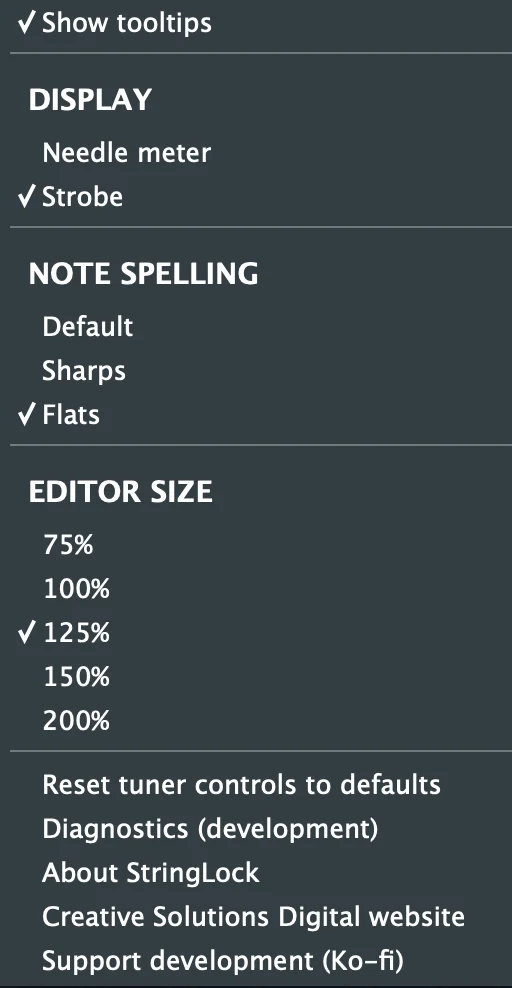
Click the upper-right gear icon to access display and personal preferences.
Display
Choose Needle meter or Strobe.
Note spelling
Choose Default, Sharps or Flats to determine names such as C# versus Db.
Editor size
Choose 75%, 100%, 125%, 150% or 200% to suit your display and workflow.
Tooltips and defaults
Show/hide control tooltips; reset tuner controls to their factory values; view software version in About StringLock. Development builds may additionally expose Diagnostics (development). The menu includes Creative Solutions Digital and support links.
Some plugin parameters are saved by the host project, while personal appearance preferences can be stored separately.
17. Using StringLock in REAPER
StringLock offers an additional REAPER-specific feature: a live mini-tuner inside REAPER's Track Control Panel (TCP) and Mixer Control Panel (MCP). The standard VST3/AU window remains available for all supported hosts.

Enable the embedded display manually
- Insert StringLock Quick Meter on a REAPER track.
- Open its FX chain and right-click StringLock in the effect list.
- Enable Show embedded UI in TCP and/or Show embedded UI in MCP (wording can vary by version).
- Make the track or mixer panel sufficiently large to display the embedded strip.
- Double-click the small embedded display to open the full editor.
Optional REAPER helper script
The REAPER folder in the downloadable ZIP includes a Lua helper script. In REAPER, open Actions → Show Action List → New Action → Load ReaScript, then select StringLock - Show tuner in selected tracks.lua. Assign the action to a shortcut or toolbar button if desired.
The helper can add StringLock to selected tracks and enable the embedded display. This integration is optional; no REAPER-specific feature is required for normal tuning in another DAW.
18. Troubleshooting
No signal appears
Verify the instrument connection, interface selection, track input assignment, input monitoring, and chosen LEFT / RIGHT / L+R channel. Lower an overly high Input Gate threshold.
Incorrect note or octave
Play one string at a time and mute other strings. Remove heavy effects ahead of the tuner. Confirm the selected preset and make sure String Lock is not targeting the wrong note.
Unstable readings
Try MED or SLOW, allow the note attack to settle, and use consistent plucking force. Check for background noise, pickup interference and mechanical tuning instability.
Cents show ±999.9
Check whether a string target is locked and far from the actual note. Switch back to Auto or select the intended string and approach its pitch gradually.
Plugin missing from the DAW
Check the plugin format and installation folder, restart the DAW and trigger a rescan. On macOS, Logic Pro / GarageBand use AU, not VST3.
REAPER embedded display missing
Enable embedding on the correct track and expand the TCP/MCP panel. The standard plugin editor continues to work even without embedding.
19. Tips for Accurate Tuning
- Start with a clean signal; tune one string at a time.
- Mute neighbouring strings and minimize background vibration.
- Wait for the initial pluck to settle before making fine corrections.
- Make small adjustments near the desired pitch.
- Use the cents readout alongside the colour and meter.
- Reduce the In-Tune Window when greater accuracy is needed.
- Recheck strings after playing, bending or using the tremolo.
Floating tremolo systems can change the tension of other strings when one is adjusted. Tune progressively and recheck until stable. Repeated tuning drift can indicate mechanical issues involving the bridge, nut, tuning machines or string installation; a tuner cannot correct those hardware faults.
20. The StringLock Product Family
StringLock Quick Meter™ delivers the core precision-tuning experience of the StringLock family as a free, complete tuner.
StringLock Pro™ is Creative Solutions Digital's comprehensive professional instrument tuning, intonation and setup workstation for luthiers, instrument builders, guitar technicians and demanding musicians. Its advanced capabilities encompass intonation analysis, custom configurations, instrument profiles, pitch stability analysis and precision setup workflows.
Quick Meter: no subscription, no trial period and no time limit.
21. Support and Resources
Creative Solutions Digital
Website: creativesolutions.digital
StringLock product information: creativesolutions.digital/stringlock/
Support development: ko-fi.com/creative_solutions
For a useful support request, provide your operating system and version, DAW and version, StringLock version, audio interface model, description of the problem and a screenshot if available.
22. Credits and Legal Information
StringLock Quick Meter™ is developed by Creative Solutions Digital.
Concept, product design, engineering and software development: Creative Solutions Digital.
StringLock uses the JUCE framework and third-party typefaces and libraries licensed separately. Applicable third-party licence notices accompany the distribution package; consult that package for the licence texts and attribution details.
StringLock Quick Meter™ and StringLock Pro™ are product names of Creative Solutions Digital.
© 2026 Creative Solutions Digital. All rights reserved.
Engineered by a Musician. Built for Musicians.